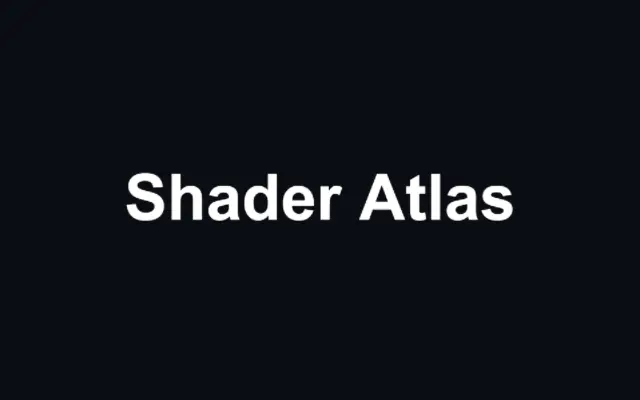
Text with any Google font — multi-line with wrapping, alignment and line height — rendered crisp via a glyph texture.
Also known as: Texttext texturetext layerglyph texture
Moves in browsers that support WebGPU
This device could not render the demo — showing a still
Code reflects the control values
React
// Renders only in browsers with WebGPU.
import { Shader, Text } from 'shaders/react'

export default function ShaderEffect() {
  return (
    <Shader style={{ width: '100%', height: 320 }} disableTelemetry>
      <Text
        fontFamily="Arial"
        fontSize={0.16}
        fontWeight={700}
        text="Shader Atlas" />
    </Shader>
  )
}
Vue
<!-- Renders only in browsers with WebGPU. -->
<script setup lang="ts">
import { Shader, Text } from 'shaders/vue'
</script>

<template>
  <Shader style="width: 100%; height: 320px" :disable-telemetry="true">
    <Text
      font-family="Arial"
      :font-size="0.16"
      :font-weight="700"
      text="Shader Atlas"/>
  </Shader>
</template>
Svelte
<!-- Renders only in browsers with WebGPU. -->
<script>
  import { Shader, Text } from 'shaders/svelte'
</script>

<Shader style="width: 100%; height: 320px" disableTelemetry>
  <Text
    fontFamily="Arial"
    fontSize={0.16}
    fontWeight={700}
    text="Shader Atlas" />
</Shader>
Solid
// Renders only in browsers with WebGPU.
import { Shader, Text } from 'shaders/solid'

export default function ShaderEffect() {
  return (
    <Shader style={{ width: '100%', height: '320px' }} disableTelemetry>
      <Text
        fontFamily="Arial"
        fontSize={0.16}
        fontWeight={700}
        text="Shader Atlas" />
    </Shader>
  )
}
JavaScript
// Renders only in browsers with WebGPU.
// expects <canvas id="canvas" style="width:100%;height:320px"></canvas> on the page
import { createShader } from 'shaders/js'

const shader = await createShader(document.getElementById("canvas"), {
  components: [
    {
      type: 'Text',
      props: {
        fontFamily: 'Arial',
        fontSize: 0.16,
        fontWeight: 700,
        text: 'Shader Atlas',
      },
    }
  ]
}, { disableTelemetry: true })
Props · Text
Changes apply to the demo above and to the code tabs. Descriptions come from the library registry (MIT).
Name
Value
Default
Range / options
Description
textText
Hello World
—
The text to display (single line)
fontFamilyFont
Set in code
Inter
—
Google Fonts family name
fontWeightWeight
Set in code
400
—
Font weight (only weights published for the family render true; others are synthesized)
italicItalic
false
—
Italic style
textTransformTransform
none
none · uppercase · lowercase · capitalize
Case transformation applied to the text
fontSizeSize
0.07
0.01 – 0.5 (step 0.005)
Font size as a fraction of canvas height
letterSpacingLetter Spacing
0
-0.1 – 0.5 (step 0.005)
Letter spacing in em units
lineHeightLine Height
1.2
0.8 – 2.5 (step 0.05)
Line height as a multiple of font size (multi-line text)
textAlignAlign
center
left · center · right
Horizontal alignment of lines within the text block
widthMax Width
0
0 – 1 (step 0.005)
Wrap width — text wraps to fit; 0 = auto (hug contents, single line per explicit break). Edited via the Typography panel's Auto/Fixed width toggle and the side drag handles, not a slider.
colorColor
#ffffff
—
Text color
originOrigin
Set in code
center
—
Reference edge the center position is measured from (center default). Lets you pin the text relative to a corner or the canvas centre.
centerCenter
xy
{"x":0.5,"y":0.5}
x, y: 0 – 1
Center position of the text
rotationRotation
0
0 – 360 (step 1)
Rotation in degrees
Every component also takes blendMode · opacity · visible · maskSource/maskType · boundingBox · id
Think of a title printed on a poster: the text is drawn on the canvas and can be recolored, distorted, or blurred like other shader layers.
Set the copy with `text` and choose a typeface with `fontFamily` (default `Inter`). `fontSize` is a fraction of canvas height, defaulting to `0.07` with a range of `0.01`–`0.5`. `width` controls wrapping; its default `0` fits the content automatically, and its range is `0`–`1`. `textAlign` places multiple lines left, center, or right.
Text draws on its own, so later effects can target the lettering. For body copy that people need to select, copy, or hear through a screen reader, provide real HTML text too; canvas lettering does not replace document text.
When to use
Use it for short titles and labels, kinetic typography, or lettering that needs gradients and distortions. Avoid long copy or content that must remain searchable, selectable, and exposed as text to assistive technology.