React Vue Svelte Solid JavaScript 컨트롤 값이 반영된 코드입니다
// WebGPU 를 지원하는 브라우저에서만 그립니다.
import { Shader, Circle, LinearGradient } from 'shaders/react'

export default function ShaderEffect() {
  return (
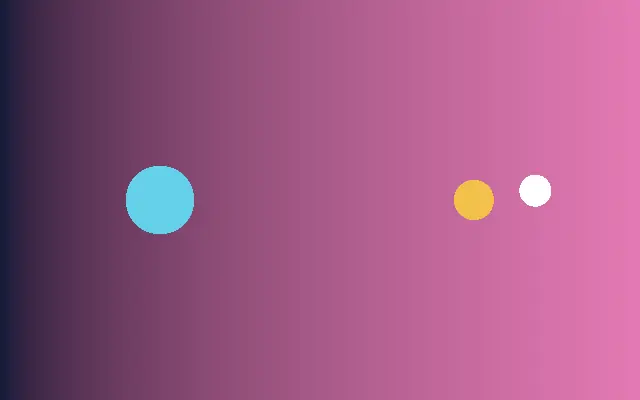
    <Shader style={{ width: '100%', height: 320 }} disableTelemetry>
      <LinearGradient
        id="radius-map"
        colorA="#081b3a"
        colorB="#f472b6" />
      <Circle
        center={{
          x: 0.25,
          y: 0.5
        }}
        color="#22d3ee"
        radius={{
          type: "auto-animate",
          mode: "ping-pong",
          outputMin: 0.08,
          outputMax: 0.2,
          speed: 1
        }} />
      <Circle
        center={{
          type: "mouse-position",
          smoothing: 0.12,
          momentum: 0.2
        }}
        radius={0.08} />
      <Circle
        center={{
          x: 0.74,
          y: 0.5
        }}
        color="#fbbf24"
        radius={{
          type: "map",
          source: "radius-map",
          channel: "luminance",
          inputMin: 0,
          inputMax: 1,
          outputMin: 0.06,
          outputMax: 0.22
        }} />
    </Shader>
  )
}<!-- WebGPU 를 지원하는 브라우저에서만 그립니다. -->
<script setup lang="ts">
import { Shader, Circle, LinearGradient } from 'shaders/vue'
</script>
<template>
<Shader style="width: 100%; height: 320px" :disable-telemetry="true">
<LinearGradient
id="radius-map"
color-a="#081b3a"
color-b="#f472b6"/>
<Circle
:center="{
x: 0.25,
y: 0.5
}"
color="#22d3ee"
:radius="{
type: 'auto-animate',
mode: 'ping-pong',
outputMin: 0.08,
outputMax: 0.2,
speed: 1
}"/>
<Circle
:center="{
type: 'mouse-position',
smoothing: 0.12,
momentum: 0.2
}"
:radius="0.08"/>
<Circle
:center="{
x: 0.74,
y: 0.5
}"
color="#fbbf24"
:radius="{
type: 'map',
source: 'radius-map',
channel: 'luminance',
inputMin: 0,
inputMax: 1,
outputMin: 0.06,
outputMax: 0.22
}"/>
</Shader>
</template><!-- WebGPU 를 지원하는 브라우저에서만 그립니다. -->
<script>
import { Shader, Circle, LinearGradient } from 'shaders/svelte'
</script>
<Shader style="width: 100%; height: 320px" disableTelemetry>
<LinearGradient
id="radius-map"
colorA="#081b3a"
colorB="#f472b6" />
<Circle
center={{
x: 0.25,
y: 0.5
}}
color="#22d3ee"
radius={{
type: "auto-animate",
mode: "ping-pong",
outputMin: 0.08,
outputMax: 0.2,
speed: 1
}} />
<Circle
center={{
type: "mouse-position",
smoothing: 0.12,
momentum: 0.2
}}
radius={0.08} />
<Circle
center={{
x: 0.74,
y: 0.5
}}
color="#fbbf24"
radius={{
type: "map",
source: "radius-map",
channel: "luminance",
inputMin: 0,
inputMax: 1,
outputMin: 0.06,
outputMax: 0.22
}} />
</Shader>// WebGPU 를 지원하는 브라우저에서만 그립니다.
import { Shader, Circle, LinearGradient } from 'shaders/solid'
export default function ShaderEffect() {
return (
<Shader style={{ width: '100%', height: '320px' }} disableTelemetry>
<LinearGradient
id="radius-map"
colorA="#081b3a"
colorB="#f472b6" />
<Circle
center={{
x: 0.25,
y: 0.5
}}
color="#22d3ee"
radius={{
type: "auto-animate",
mode: "ping-pong",
outputMin: 0.08,
outputMax: 0.2,
speed: 1
}} />
<Circle
center={{
type: "mouse-position",
smoothing: 0.12,
momentum: 0.2
}}
radius={0.08} />
<Circle
center={{
x: 0.74,
y: 0.5
}}
color="#fbbf24"
radius={{
type: "map",
source: "radius-map",
channel: "luminance",
inputMin: 0,
inputMax: 1,
outputMin: 0.06,
outputMax: 0.22
}} />
</Shader>
)
}// WebGPU 를 지원하는 브라우저에서만 그립니다.
// <canvas id="canvas" style="width:100%;height:320px"></canvas> 가 페이지에 있어야 한다
import { createShader } from 'shaders/js'
const shader = await createShader(document.getElementById("canvas"), {
components: [
{
type: 'LinearGradient',
id: 'radius-map',
props: {
colorA: '#081b3a',
colorB: '#f472b6',
},
},
{
type: 'Circle',
props: {
center: {
x: 0.25,
y: 0.5
},
color: '#22d3ee',
radius: {
type: 'auto-animate',
mode: 'ping-pong',
outputMin: 0.08,
outputMax: 0.2,
speed: 1
},
},
},
{
type: 'Circle',
props: {
center: {
type: 'mouse-position',
smoothing: 0.12,
momentum: 0.2
},
radius: 0.08,
},
},
{
type: 'Circle',
props: {
center: {
x: 0.74,
y: 0.5
},
color: '#fbbf24',
radius: {
type: 'map',
source: 'radius-map',
channel: 'luminance',
inputMin: 0,
inputMax: 1,
outputMin: 0.06,
outputMax: 0.22
},
},
}
]
}, { disableTelemetry: true })