Slice Wipe

슬라이스 와이프

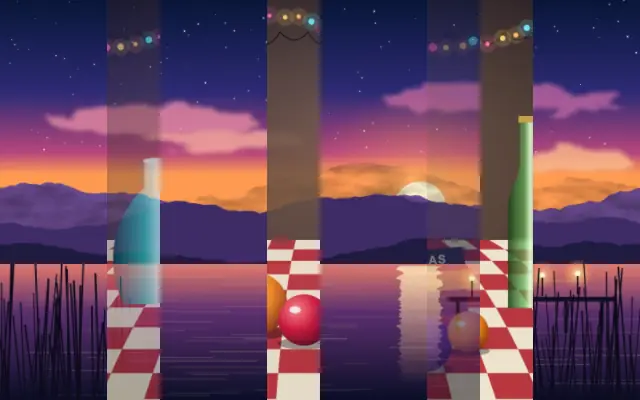
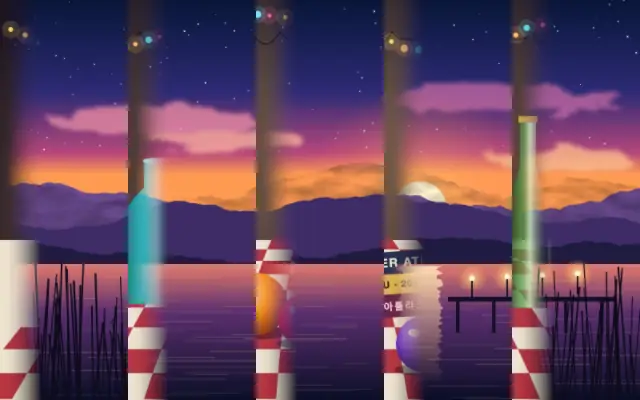
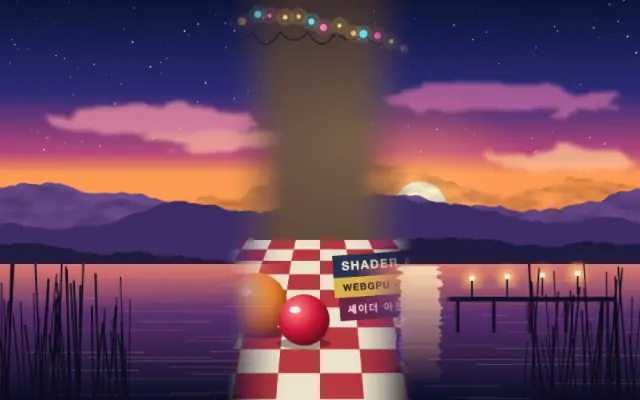
Alternating strips slide away to remove the image in slices.

Also known as: SliceWipestrip wipe

Moves in browsers that support WebGPU

This device could not render the demo — showing a still

React
// Renders only in browsers with WebGPU.
// /samples/… are this site’s sample files — point them at your own image or video.
import { Shader, ImageTexture, SliceWipe } from 'shaders/react'

export default function ShaderEffect() {
  return (
    <Shader style={{ width: '100%', height: 320 }} disableTelemetry>
      <ImageTexture
        objectFit="cover"
        url="/samples/still.jpg" />
      <SliceWipe
        progress={{
          type: "auto-animate",
          mode: "ping-pong",
          outputMin: 0,
          outputMax: 1,
          speed: 0.5
        }}>
        <ImageTexture
          objectFit="cover"
          url="/samples/photo.jpg" />
      </SliceWipe>
    </Shader>
  )
}
Vue
<!-- Renders only in browsers with WebGPU. -->
<!-- /samples/… are this site’s sample files — point them at your own image or video. -->
<script setup lang="ts">
import { Shader, ImageTexture, SliceWipe } from 'shaders/vue'
</script>

<template>
  <Shader style="width: 100%; height: 320px" :disable-telemetry="true">
    <ImageTexture
      object-fit="cover"
      url="/samples/still.jpg"/>
    <SliceWipe
      :progress="{
        type: 'auto-animate',
        mode: 'ping-pong',
        outputMin: 0,
        outputMax: 1,
        speed: 0.5
      }">
      <ImageTexture
        object-fit="cover"
        url="/samples/photo.jpg"/>
    </SliceWipe>
  </Shader>
</template>
Svelte
<!-- Renders only in browsers with WebGPU. -->
<!-- /samples/… are this site’s sample files — point them at your own image or video. -->
<script>
  import { Shader, ImageTexture, SliceWipe } from 'shaders/svelte'
</script>

<Shader style="width: 100%; height: 320px" disableTelemetry>
  <ImageTexture
    objectFit="cover"
    url="/samples/still.jpg" />
  <SliceWipe
    progress={{
      type: "auto-animate",
      mode: "ping-pong",
      outputMin: 0,
      outputMax: 1,
      speed: 0.5
    }}>
    <ImageTexture
      objectFit="cover"
      url="/samples/photo.jpg" />
  </SliceWipe>
</Shader>
Solid
// Renders only in browsers with WebGPU.
// /samples/… are this site’s sample files — point them at your own image or video.
import { Shader, ImageTexture, SliceWipe } from 'shaders/solid'

export default function ShaderEffect() {
  return (
    <Shader style={{ width: '100%', height: '320px' }} disableTelemetry>
      <ImageTexture
        objectFit="cover"
        url="/samples/still.jpg" />
      <SliceWipe
        progress={{
          type: "auto-animate",
          mode: "ping-pong",
          outputMin: 0,
          outputMax: 1,
          speed: 0.5
        }}>
        <ImageTexture
          objectFit="cover"
          url="/samples/photo.jpg" />
      </SliceWipe>
    </Shader>
  )
}
JavaScript
// Renders only in browsers with WebGPU.
// /samples/… are this site’s sample files — point them at your own image or video.
// expects <canvas id="canvas" style="width:100%;height:320px"></canvas> on the page
import { createShader } from 'shaders/js'

const shader = await createShader(document.getElementById("canvas"), {
  components: [
    {
      type: 'ImageTexture',
      props: {
        objectFit: 'cover',
        url: '/samples/still.jpg',
      },
    },
    {
      type: 'SliceWipe',
      props: {
        progress: {
          type: 'auto-animate',
          mode: 'ping-pong',
          outputMin: 0,
          outputMax: 1,
          speed: 0.5
        },
      },
      children: [
        {
          type: 'ImageTexture',
          props: {
            objectFit: 'cover',
            url: '/samples/photo.jpg',
          },
        },
      ],
    }
  ]
}, { disableTelemetry: true })

Props · SliceWipe

Changes apply to the demo above and to the code tabs. Descriptions come from the library registry (MIT).

NameValueDefaultRange / optionsDescription
progressProgressAuto-animated in the demo — moving it pins the value0.50 – 1 (step 0.01)How far the strips have slid (0 = fully visible, 1 = fully wiped away)
angleAngle00 – 360 (step 1)Orientation of the strips in degrees (0 = vertical strips sliding up and down)
sliceCountSlices82 – 60 (step 1)Number of strips across the frame

Every component also takes blendMode · opacity · visible · maskSource/maskType · boundingBox · id

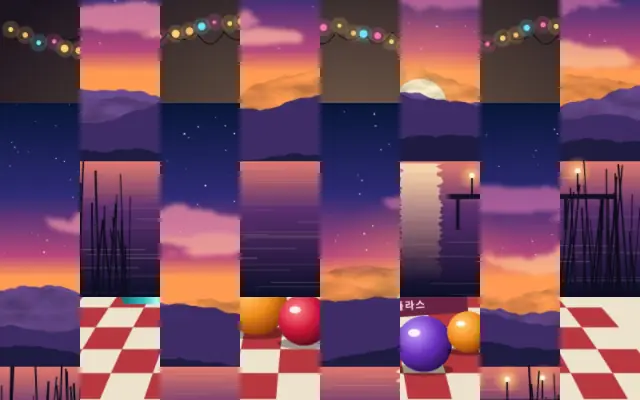
The scene splits into strips that slide away in alternating directions. It feels like moving pieces rather than blinds closing.

`progress` defaults to 0.5 and ranges from 0 to 1. `angle` defaults to 0 degrees and ranges from 0 to 360 degrees to rotate the strips. `sliceCount` defaults to 8 and ranges from 2 to 60 for the number of strips across the frame.

Place an image or video beneath the effect, and put the incoming scene below it while animating progress. A high strip count divides the frame into busy pieces, and small text can be cut into fragments that are hard to read.

When to use

Use it for fast graphic transitions, moving-strip title treatments, or a rhythmic background. Avoid it when dense information or copy must stay readable.

Open as page ↗