Blend modes

블렌드 모드

A blend mode defines how a layer's colors combine with the layers beneath it.

Also known as: Blend modeCompositing modes

Moves in browsers that support WebGPU

This device could not render the demo — showing a still

React
// Renders only in browsers with WebGPU.
import { Shader, Circle, LinearGradient } from 'shaders/react'

export default function ShaderEffect() {
  return (
    <Shader style={{ width: '100%', height: 320 }} disableTelemetry>
      <LinearGradient
        colorA="#172554"
        colorB="#581c87" />
      <Circle
        blendMode="screen"
        center={{
          x: 0.38,
          y: 0.5
        }}
        color="#fb7185"
        opacity={0.85}
        radius={0.34} />
      <Circle
        blendMode="multiply"
        center={{
          x: 0.62,
          y: 0.5
        }}
        color="#38bdf8"
        opacity={0.85}
        radius={0.34} />
      <Circle
        blendMode="overlay"
        center={{
          x: 0.5,
          y: 0.68
        }}
        color="#facc15"
        opacity={0.8}
        radius={0.28} />
    </Shader>
  )
}
Vue
<!-- Renders only in browsers with WebGPU. -->
<script setup lang="ts">
import { Shader, Circle, LinearGradient } from 'shaders/vue'
</script>

<template>
  <Shader style="width: 100%; height: 320px" :disable-telemetry="true">
    <LinearGradient
      color-a="#172554"
      color-b="#581c87"/>
    <Circle
      blend-mode="screen"
      :center="{
        x: 0.38,
        y: 0.5
      }"
      color="#fb7185"
      :opacity="0.85"
      :radius="0.34"/>
    <Circle
      blend-mode="multiply"
      :center="{
        x: 0.62,
        y: 0.5
      }"
      color="#38bdf8"
      :opacity="0.85"
      :radius="0.34"/>
    <Circle
      blend-mode="overlay"
      :center="{
        x: 0.5,
        y: 0.68
      }"
      color="#facc15"
      :opacity="0.8"
      :radius="0.28"/>
  </Shader>
</template>
Svelte
<!-- Renders only in browsers with WebGPU. -->
<script>
  import { Shader, Circle, LinearGradient } from 'shaders/svelte'
</script>

<Shader style="width: 100%; height: 320px" disableTelemetry>
  <LinearGradient
    colorA="#172554"
    colorB="#581c87" />
  <Circle
    blendMode="screen"
    center={{
      x: 0.38,
      y: 0.5
    }}
    color="#fb7185"
    opacity={0.85}
    radius={0.34} />
  <Circle
    blendMode="multiply"
    center={{
      x: 0.62,
      y: 0.5
    }}
    color="#38bdf8"
    opacity={0.85}
    radius={0.34} />
  <Circle
    blendMode="overlay"
    center={{
      x: 0.5,
      y: 0.68
    }}
    color="#facc15"
    opacity={0.8}
    radius={0.28} />
</Shader>
Solid
// Renders only in browsers with WebGPU.
import { Shader, Circle, LinearGradient } from 'shaders/solid'

export default function ShaderEffect() {
  return (
    <Shader style={{ width: '100%', height: '320px' }} disableTelemetry>
      <LinearGradient
        colorA="#172554"
        colorB="#581c87" />
      <Circle
        blendMode="screen"
        center={{
          x: 0.38,
          y: 0.5
        }}
        color="#fb7185"
        opacity={0.85}
        radius={0.34} />
      <Circle
        blendMode="multiply"
        center={{
          x: 0.62,
          y: 0.5
        }}
        color="#38bdf8"
        opacity={0.85}
        radius={0.34} />
      <Circle
        blendMode="overlay"
        center={{
          x: 0.5,
          y: 0.68
        }}
        color="#facc15"
        opacity={0.8}
        radius={0.28} />
    </Shader>
  )
}
JavaScript
// Renders only in browsers with WebGPU.
// expects <canvas id="canvas" style="width:100%;height:320px"></canvas> on the page
import { createShader } from 'shaders/js'

const shader = await createShader(document.getElementById("canvas"), {
  components: [
    {
      type: 'LinearGradient',
      props: {
        colorA: '#172554',
        colorB: '#581c87',
      },
    },
    {
      type: 'Circle',
      props: {
        blendMode: 'screen',
        center: {
          x: 0.38,
          y: 0.5
        },
        color: '#fb7185',
        opacity: 0.85,
        radius: 0.34,
      },
    },
    {
      type: 'Circle',
      props: {
        blendMode: 'multiply',
        center: {
          x: 0.62,
          y: 0.5
        },
        color: '#38bdf8',
        opacity: 0.85,
        radius: 0.34,
      },
    },
    {
      type: 'Circle',
      props: {
        blendMode: 'overlay',
        center: {
          x: 0.5,
          y: 0.68
        },
        color: '#facc15',
        opacity: 0.8,
        radius: 0.28,
      },
    }
  ]
}, { disableTelemetry: true })

Props · Circle

Changes apply to the demo above and to the code tabs. Descriptions come from the library registry (MIT).

NameValueDefaultRange / optionsDescription
originOriginSet in codecenter—Reference edge the center position is measured from (center default). Lets you pin the shape relative to a corner or the canvas centre.
colorColor#ffffff—The color of the circle
radiusRadius10 – 2 (step 0.01)The radius of the circle. A value of one (1) is sets the circle to fit the canvas.
softnessSoftness00 – 1 (step 0.01)Edge softness. Lower values like zero (0) are sharp, higher values like one (1) are softer.
centerCenter Position
x0.38y0.5
{"x":0.5,"y":0.5}x, y: 0 – 1The center point of the circle
strokeThicknessStroke Thickness00 – 0.5 (step 0.01)The thickness of the stroke outline. Zero (0) means no stroke.
strokeColorStroke Color#000000—The color of the stroke outline
strokePositionStroke Positioncenteroutside · center · insidePosition of the stroke relative to the circle edge
colorSpaceColor Blendinglinearlinear · oklch · oklab · hsl · hsv · lchColor space for blending fill and stroke colors in soft edges

Every component also takes blendMode · opacity · visible · maskSource/maskType · boundingBox · id

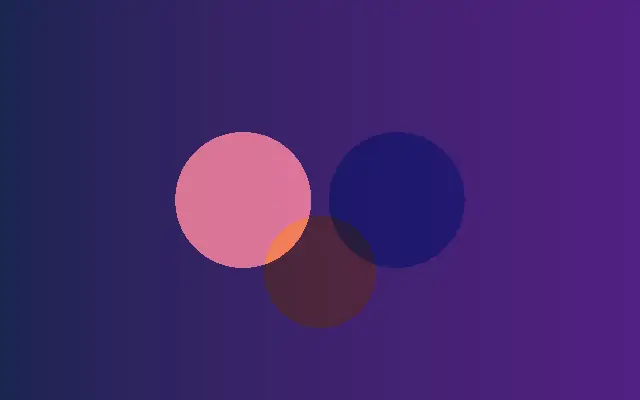
Like colored sheets layered under a light, a blend mode decides what happens where two colors overlap. `multiply` darkens, `screen` brightens, and `overlay` builds contrast while retaining some of the background's light and dark areas.

Change a layer's `blendMode` to `normal`, `multiply`, `screen`, or `overlay` to alter brightness and contrast in the overlap. Lower `opacity` softens the mode's influence, and changing either color changes the result.

A mode is easiest to compare over a contrasting background or shape. `multiply` can become too dark over a bright image, and combining many modes can muddy colors until the original intent is hard to see.

When to use

Use blend modes to merge light with a background, build poster-like contrast from overlapping colors, or add a subtle texture. Avoid them when they reduce contrast around text or other essential information.

Open as page ↗