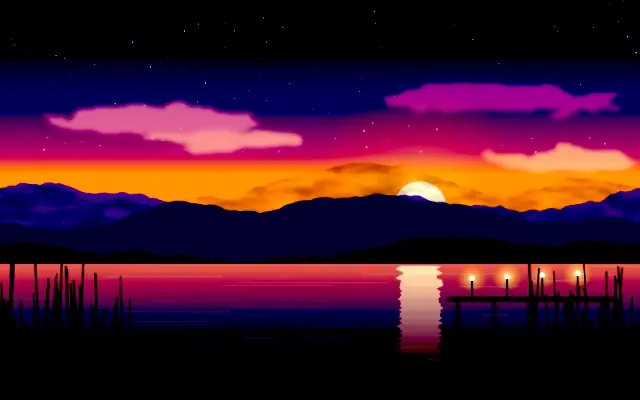
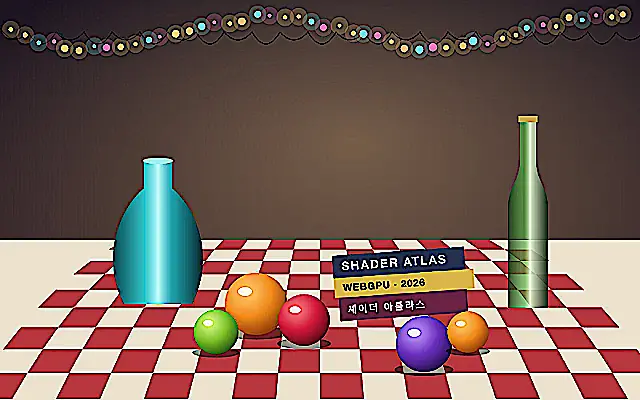
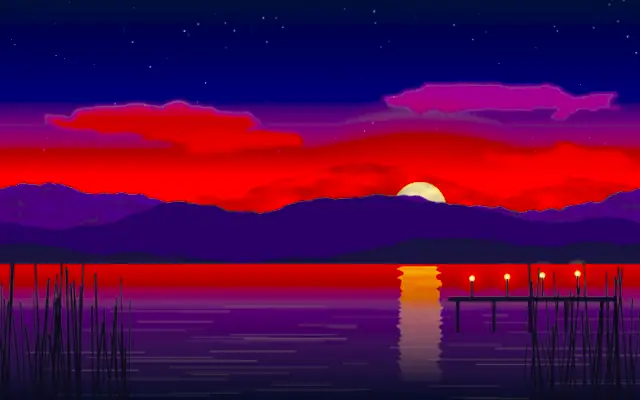
Brightness moves the image lighter or darker, while contrast changes the separation between tones.
Also known as: BrightnessContrastbrightness and contrast
Moves in browsers that support WebGPU
This device could not render the demo — showing a still
Code reflects the control values
React
// Renders only in browsers with WebGPU.
// /samples/… are this site’s sample files — point them at your own image or video.
import { Shader, BrightnessContrast, ImageTexture } from 'shaders/react'

export default function ShaderEffect() {
  return (
    <Shader style={{ width: '100%', height: 320 }} disableTelemetry>
      <ImageTexture
        objectFit="cover"
        url="/samples/photo.jpg" />
      <BrightnessContrast
        brightness={0.06}
        contrast={0.45} />
    </Shader>
  )
}
Vue
<!-- Renders only in browsers with WebGPU. -->
<!-- /samples/… are this site’s sample files — point them at your own image or video. -->
<script setup lang="ts">
import { Shader, BrightnessContrast, ImageTexture } from 'shaders/vue'
</script>

<template>
  <Shader style="width: 100%; height: 320px" :disable-telemetry="true">
    <ImageTexture
      object-fit="cover"
      url="/samples/photo.jpg"/>
    <BrightnessContrast
      :brightness="0.06"
      :contrast="0.45"/>
  </Shader>
</template>
Svelte
<!-- Renders only in browsers with WebGPU. -->
<!-- /samples/… are this site’s sample files — point them at your own image or video. -->
<script>
  import { Shader, BrightnessContrast, ImageTexture } from 'shaders/svelte'
</script>

<Shader style="width: 100%; height: 320px" disableTelemetry>
  <ImageTexture
    objectFit="cover"
    url="/samples/photo.jpg" />
  <BrightnessContrast
    brightness={0.06}
    contrast={0.45} />
</Shader>
Solid
// Renders only in browsers with WebGPU.
// /samples/… are this site’s sample files — point them at your own image or video.
import { Shader, BrightnessContrast, ImageTexture } from 'shaders/solid'

export default function ShaderEffect() {
  return (
    <Shader style={{ width: '100%', height: '320px' }} disableTelemetry>
      <ImageTexture
        objectFit="cover"
        url="/samples/photo.jpg" />
      <BrightnessContrast
        brightness={0.06}
        contrast={0.45} />
    </Shader>
  )
}
JavaScript
// Renders only in browsers with WebGPU.
// /samples/… are this site’s sample files — point them at your own image or video.
// expects <canvas id="canvas" style="width:100%;height:320px"></canvas> on the page
import { createShader } from 'shaders/js'

const shader = await createShader(document.getElementById("canvas"), {
  components: [
    {
      type: 'ImageTexture',
      props: {
        objectFit: 'cover',
        url: '/samples/photo.jpg',
      },
    },
    {
      type: 'BrightnessContrast',
      props: {
        brightness: 0.06,
        contrast: 0.45,
      },
    }
  ]
}, { disableTelemetry: true })
Props · BrightnessContrast
Changes apply to the demo above and to the code tabs. Descriptions come from the library registry (MIT).
Name
Value
Default
Range / options
Description
brightnessBrightness
0
-1 – 1 (step 0.01)
Brightness adjustment (-1 to 1)
contrastContrast
0
-1 – 1 (step 0.01)
Contrast adjustment (-1 to 1)
Every component also takes blendMode · opacity · visible · maskSource/maskType · boundingBox · id
Like editing a photograph with different exposure, it lightens or darkens the overall image and changes the gap between light and dark areas.
`brightness` and `contrast` both default to 0 and range from -1 to 1. Raising brightness makes the image lighter; raising contrast widens tonal differences. Negative values make it darker or reduce contrast.
Place it over an input such as a photo, video, or gradient. Changing brightness and contrast too far together can wash out highlights or hide shadow detail. Adjust it in small steps before or after other color corrections to find the intended tone.
When to use
Use it to quickly balance a photo, organize background contrast, or set a base tone before color grading. Avoid extreme values when both highlight and shadow detail must remain.