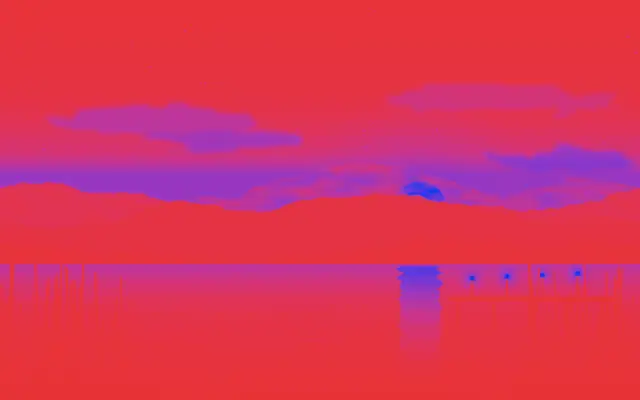
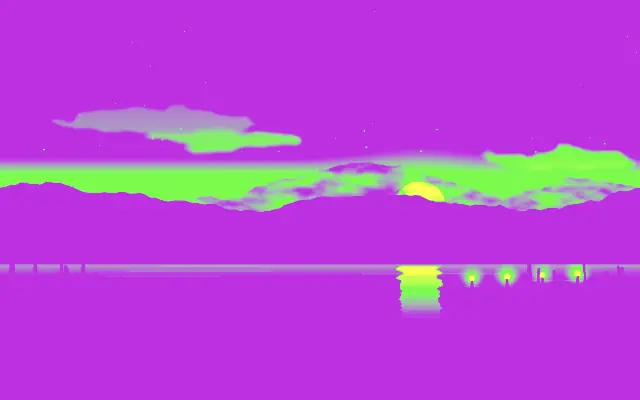
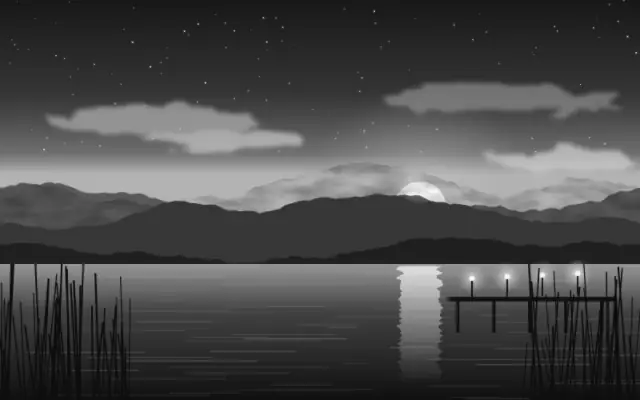
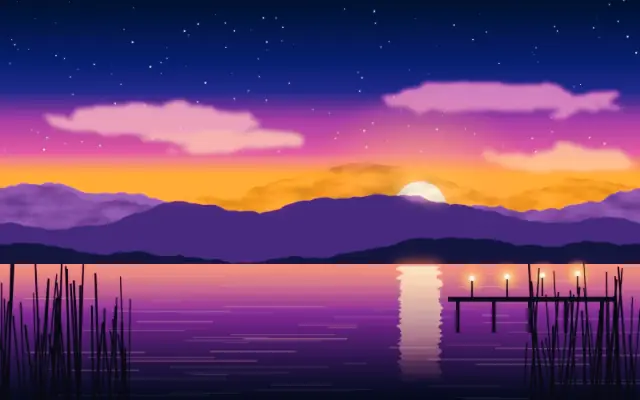
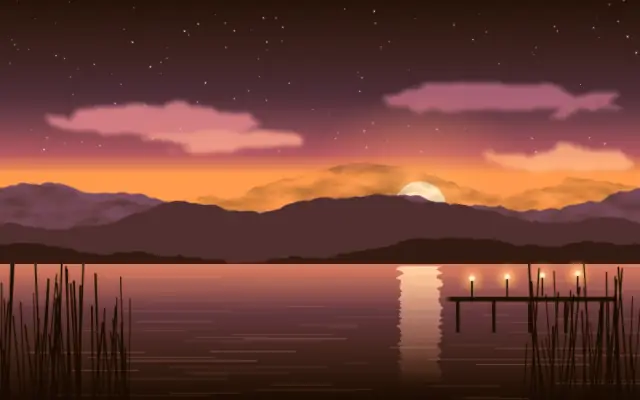
Duotone maps darker and brighter image areas to two chosen colors.
Also known as: Duotonetwo-tone mapping
Moves in browsers that support WebGPU
This device could not render the demo — showing a still
Code reflects the control values
React
// Renders only in browsers with WebGPU.
// /samples/… are this site’s sample files — point them at your own image or video.
import { Shader, Duotone, ImageTexture } from 'shaders/react'

export default function ShaderEffect() {
  return (
    <Shader style={{ width: '100%', height: 320 }} disableTelemetry>
      <ImageTexture
        objectFit="cover"
        url="/samples/photo.jpg" />
      <Duotone
        blend={{
          type: "auto-animate",
          mode: "ping-pong",
          outputMin: 0.2,
          outputMax: 0.8,
          speed: 0.6
        }} />
    </Shader>
  )
}
Vue
<!-- Renders only in browsers with WebGPU. -->
<!-- /samples/… are this site’s sample files — point them at your own image or video. -->
<script setup lang="ts">
import { Shader, Duotone, ImageTexture } from 'shaders/vue'
</script>

<template>
  <Shader style="width: 100%; height: 320px" :disable-telemetry="true">
    <ImageTexture
      object-fit="cover"
      url="/samples/photo.jpg"/>
    <Duotone
      :blend="{
        type: 'auto-animate',
        mode: 'ping-pong',
        outputMin: 0.2,
        outputMax: 0.8,
        speed: 0.6
      }"/>
  </Shader>
</template>
Svelte
<!-- Renders only in browsers with WebGPU. -->
<!-- /samples/… are this site’s sample files — point them at your own image or video. -->
<script>
  import { Shader, Duotone, ImageTexture } from 'shaders/svelte'
</script>

<Shader style="width: 100%; height: 320px" disableTelemetry>
  <ImageTexture
    objectFit="cover"
    url="/samples/photo.jpg" />
  <Duotone
    blend={{
      type: "auto-animate",
      mode: "ping-pong",
      outputMin: 0.2,
      outputMax: 0.8,
      speed: 0.6
    }} />
</Shader>
Solid
// Renders only in browsers with WebGPU.
// /samples/… are this site’s sample files — point them at your own image or video.
import { Shader, Duotone, ImageTexture } from 'shaders/solid'

export default function ShaderEffect() {
  return (
    <Shader style={{ width: '100%', height: '320px' }} disableTelemetry>
      <ImageTexture
        objectFit="cover"
        url="/samples/photo.jpg" />
      <Duotone
        blend={{
          type: "auto-animate",
          mode: "ping-pong",
          outputMin: 0.2,
          outputMax: 0.8,
          speed: 0.6
        }} />
    </Shader>
  )
}
JavaScript
// Renders only in browsers with WebGPU.
// /samples/… are this site’s sample files — point them at your own image or video.
// expects <canvas id="canvas" style="width:100%;height:320px"></canvas> on the page
import { createShader } from 'shaders/js'

const shader = await createShader(document.getElementById("canvas"), {
  components: [
    {
      type: 'ImageTexture',
      props: {
        objectFit: 'cover',
        url: '/samples/photo.jpg',
      },
    },
    {
      type: 'Duotone',
      props: {
        blend: {
          type: 'auto-animate',
          mode: 'ping-pong',
          outputMin: 0.2,
          outputMax: 0.8,
          speed: 0.6
        },
      },
    }
  ]
}, { disableTelemetry: true })
Props · Duotone
Changes apply to the demo above and to the code tabs. Descriptions come from the library registry (MIT).
Name
Value
Default
Range / options
Description
colorAColor A
#ff0000
—
First color (used for darker areas)
colorBColor B
#023af4
—
Second color (used for brighter areas)
blendBlend
Auto-animated in the demo — moving it pins the value
0.5
0 – 1 (step 0.1)
Blend point between the two colors
colorSpaceColor Space
linear
linear · oklch · oklab · hsl · hsv · lch
Color space for color interpolation
Every component also takes blendMode · opacity · visible · maskSource/maskType · boundingBox · id
It resembles printing a black-and-white photograph with two inks, assigning one color to shadows and another to highlights. The brightness structure remains while the color mood changes.
`colorA` defaults to #ff0000 for darker areas and `colorB` to #023af4 for brighter areas. `blend` defaults to 0.5 and ranges from 0 to 1 to move the boundary between the colors; `colorSpace` defaults to linear and selects the interpolation space.
Place it over an image or video input. Contrasting colors create a graphic look, while closer colors produce a softer tone. Avoid it when the original colors must be preserved, and check layer order when combining it with hue or Tint adjustments.
When to use
Use it for posters and album covers, a two-color brand look, or a graphic photo treatment. Avoid it on product photos that need natural original colors.