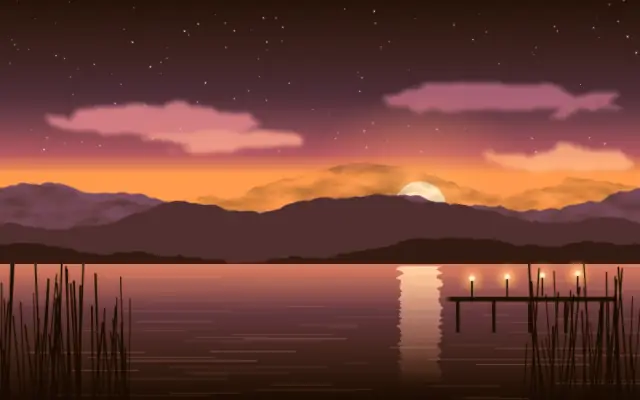
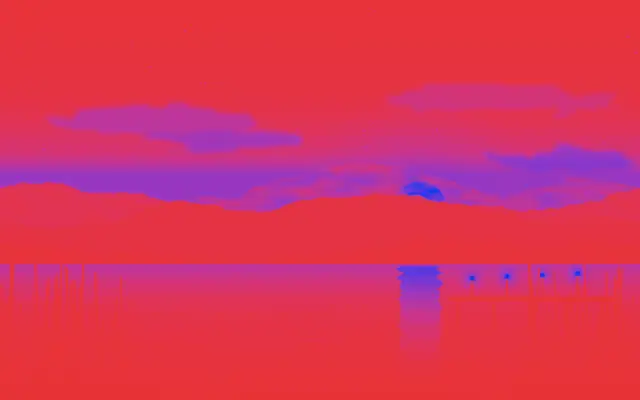
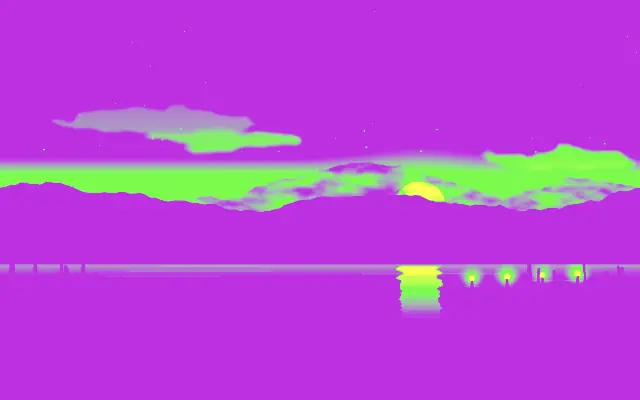
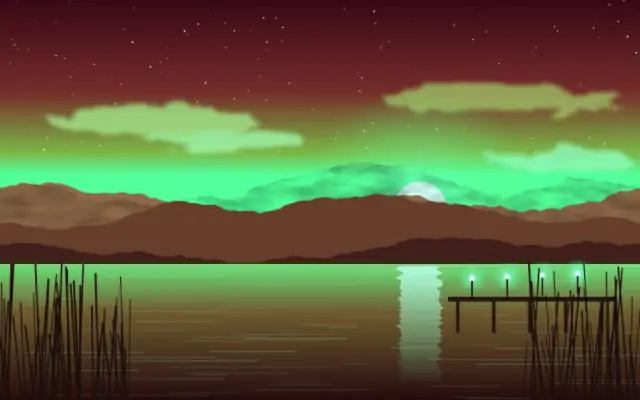
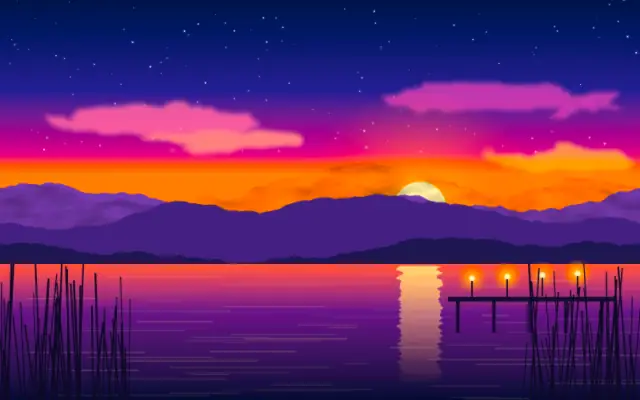
A chosen color blends over the input, with an option to preserve its luminosity.
Also known as: Tintcolor tint
Moves in browsers that support WebGPU
This device could not render the demo — showing a still
Code reflects the control values
React
// Renders only in browsers with WebGPU.
// /samples/… are this site’s sample files — point them at your own image or video.
import { Shader, ImageTexture, Tint } from 'shaders/react'

export default function ShaderEffect() {
  return (
    <Shader style={{ width: '100%', height: 320 }} disableTelemetry>
      <ImageTexture
        objectFit="cover"
        url="/samples/photo.jpg" />
      <Tint
        amount={{
          type: "auto-animate",
          mode: "ping-pong",
          outputMin: 0,
          outputMax: 0.85,
          speed: 0.6
        }} />
    </Shader>
  )
}
Vue
<!-- Renders only in browsers with WebGPU. -->
<!-- /samples/… are this site’s sample files — point them at your own image or video. -->
<script setup lang="ts">
import { Shader, ImageTexture, Tint } from 'shaders/vue'
</script>

<template>
  <Shader style="width: 100%; height: 320px" :disable-telemetry="true">
    <ImageTexture
      object-fit="cover"
      url="/samples/photo.jpg"/>
    <Tint
      :amount="{
        type: 'auto-animate',
        mode: 'ping-pong',
        outputMin: 0,
        outputMax: 0.85,
        speed: 0.6
      }"/>
  </Shader>
</template>
Svelte
<!-- Renders only in browsers with WebGPU. -->
<!-- /samples/… are this site’s sample files — point them at your own image or video. -->
<script>
  import { Shader, ImageTexture, Tint } from 'shaders/svelte'
</script>

<Shader style="width: 100%; height: 320px" disableTelemetry>
  <ImageTexture
    objectFit="cover"
    url="/samples/photo.jpg" />
  <Tint
    amount={{
      type: "auto-animate",
      mode: "ping-pong",
      outputMin: 0,
      outputMax: 0.85,
      speed: 0.6
    }} />
</Shader>
Solid
// Renders only in browsers with WebGPU.
// /samples/… are this site’s sample files — point them at your own image or video.
import { Shader, ImageTexture, Tint } from 'shaders/solid'

export default function ShaderEffect() {
  return (
    <Shader style={{ width: '100%', height: '320px' }} disableTelemetry>
      <ImageTexture
        objectFit="cover"
        url="/samples/photo.jpg" />
      <Tint
        amount={{
          type: "auto-animate",
          mode: "ping-pong",
          outputMin: 0,
          outputMax: 0.85,
          speed: 0.6
        }} />
    </Shader>
  )
}
JavaScript
// Renders only in browsers with WebGPU.
// /samples/… are this site’s sample files — point them at your own image or video.
// expects <canvas id="canvas" style="width:100%;height:320px"></canvas> on the page
import { createShader } from 'shaders/js'

const shader = await createShader(document.getElementById("canvas"), {
  components: [
    {
      type: 'ImageTexture',
      props: {
        objectFit: 'cover',
        url: '/samples/photo.jpg',
      },
    },
    {
      type: 'Tint',
      props: {
        amount: {
          type: 'auto-animate',
          mode: 'ping-pong',
          outputMin: 0,
          outputMax: 0.85,
          speed: 0.6
        },
      },
    }
  ]
}, { disableTelemetry: true })
Props · Tint
Changes apply to the demo above and to the code tabs. Descriptions come from the library registry (MIT).
Name
Value
Default
Range / options
Description
colorTint Color
#ff8800
—
Tint color
amountAmount
Auto-animated in the demo — moving it pins the value
0.5
0 – 1 (step 0.1)
Tint amount (0 = no tint, 1 = full tint)
preserveLuminosityPreserve Luminosity
true
—
Preserve original brightness
Every component also takes blendMode · opacity · visible · maskSource/maskType · boundingBox · id
It feels like placing a transparent color filter over a photograph, tinting the overall mood. It can suggest colored light or a warm film treatment.
`color` defaults to #ff8800 for the tint color. `amount` defaults to 0.5 and ranges from 0 to 1 for the blend amount. `preserveLuminosity` defaults to true and controls whether the original brightness is preserved.
Apply it over a photo or video input. Larger amounts hide more of the original colors under the tint. Unlike Duotone, which maps tones to separate colors, Tint applies one color across the image; choose another effect when tonal separation matters.
When to use
Use it to add a brand color to an image, suggest warm or cool lighting, or unify a video's tone. Avoid it when different colors are needed for different brightness levels.