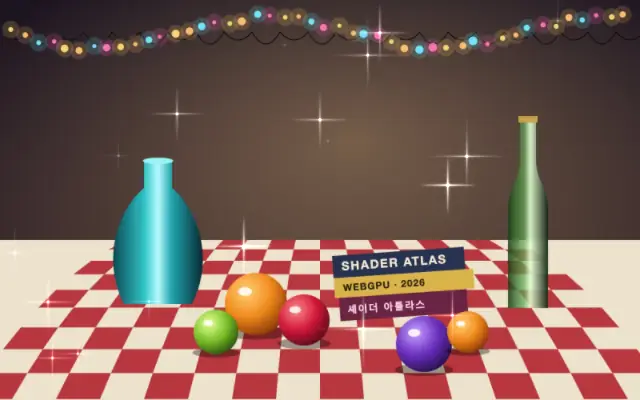
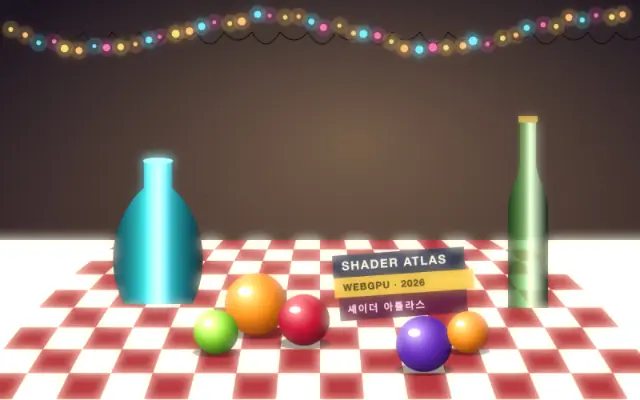
Adds twinkling star glints over the bright parts of the input.
Also known as: SparkleStar glintsTwinkles
Moves in browsers that support WebGPU
This device could not render the demo — showing a still
Code reflects the control values
React
// Renders only in browsers with WebGPU.
// /samples/… are this site’s sample files — point them at your own image or video.
import { Shader, ImageTexture, Sparkle } from 'shaders/react'

export default function ShaderEffect() {
  return (
    <Shader style={{ width: '100%', height: 320 }} disableTelemetry>
      <ImageTexture
        objectFit="cover"
        url="/samples/still.jpg" />
      <Sparkle />
    </Shader>
  )
}
Vue
<!-- Renders only in browsers with WebGPU. -->
<!-- /samples/… are this site’s sample files — point them at your own image or video. -->
<script setup lang="ts">
import { Shader, ImageTexture, Sparkle } from 'shaders/vue'
</script>

<template>
  <Shader style="width: 100%; height: 320px" :disable-telemetry="true">
    <ImageTexture
      object-fit="cover"
      url="/samples/still.jpg"/>
    <Sparkle/>
  </Shader>
</template>
Svelte
<!-- Renders only in browsers with WebGPU. -->
<!-- /samples/… are this site’s sample files — point them at your own image or video. -->
<script>
  import { Shader, ImageTexture, Sparkle } from 'shaders/svelte'
</script>

<Shader style="width: 100%; height: 320px" disableTelemetry>
  <ImageTexture
    objectFit="cover"
    url="/samples/still.jpg" />
  <Sparkle />
</Shader>
Solid
// Renders only in browsers with WebGPU.
// /samples/… are this site’s sample files — point them at your own image or video.
import { Shader, ImageTexture, Sparkle } from 'shaders/solid'

export default function ShaderEffect() {
  return (
    <Shader style={{ width: '100%', height: '320px' }} disableTelemetry>
      <ImageTexture
        objectFit="cover"
        url="/samples/still.jpg" />
      <Sparkle />
    </Shader>
  )
}
JavaScript
// Renders only in browsers with WebGPU.
// /samples/… are this site’s sample files — point them at your own image or video.
// expects <canvas id="canvas" style="width:100%;height:320px"></canvas> on the page
import { createShader } from 'shaders/js'

const shader = await createShader(document.getElementById("canvas"), {
  components: [
    {
      type: 'ImageTexture',
      props: {
        objectFit: 'cover',
        url: '/samples/still.jpg',
      },
    },
    {
      type: 'Sparkle',
    }
  ]
}, { disableTelemetry: true })
Props · Sparkle
Changes apply to the demo above and to the code tabs. Descriptions come from the library registry (MIT).
Name
Value
Default
Range / options
Description
sizeSpacing
100
10 – 200 (step 1)
Spacing between glints, in CSS pixels (smaller means more glints)
intensityIntensity
10
0 – 20 (step 0.1)
Brightness of the glints
thresholdThreshold
0.2
0 – 1 (step 0.01)
How bright the layer must be before glints appear: 0 allows all but black, 0.5 is mid-grey and up, 1 only pure white
expandExpand
0
0 – 100 (step 1)
Lets glints appear up to this many CSS pixels outside the bright areas
rayLengthRay Length
5
0 – 20 (step 0.1)
Length of the four rays around each glint (they fade out by half the spacing)
colorizeColorize
0.45
0 – 1 (step 0.01)
How much each glint takes on the colour beneath it (0 is pure white)
speedSpeed
1
0 – 5 (step 0.05)
How fast the glints twinkle
seedSeed
0
0 – 100 (step 1)
Re-rolls where the glints sit and when they blink
Every component also takes blendMode · opacity · visible · maskSource/maskType · boundingBox · id
Bright points blink like star-shaped glints on glass or gemstones. Rather than scattering dots evenly across the frame, the effect emphasizes areas that pass a brightness threshold.
`size` defaults to 100px (range 10–200px) and sets the spacing; lower values create more glints. `intensity` defaults to 10 (0–20) and sets their brightness, while `threshold` defaults to 0.2 (0–1) sets the minimum brightness that can sparkle. `rayLength` defaults to 5px (0–20px) and adjusts the four star rays; `speed` defaults to 1 (0–5) changes their twinkle rate.
Place it over an image or shape with bright highlights, such as gemstones, glass, or metal. Pair it with glow for softer spill, but on dark inputs the glints may barely appear, and on text-heavy screens they can distract.
When to use
Use it for jewelry or glass product imagery, fantasy illustrations, and celebratory reward screens. Avoid it on quiet photography or screens centered on readable text.