파티클 필드

Particle Field

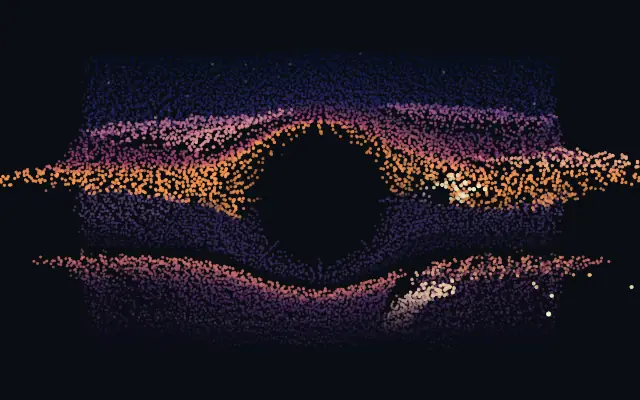
입력의 밝기와 어두움을 깊이로 바꿔 입체적으로 떠 있는 점 구름으로 펼칩니다.

다른 이름: ParticleFieldParticle reliefPoint cloud

WebGPU 를 지원하는 브라우저에서 움직입니다

이 기기에서는 데모를 그리지 못해 정지 화면을 보여 줍니다

React
// WebGPU 를 지원하는 브라우저에서만 그립니다.
// /samples/… 는 이 사이트의 샘플 파일입니다. 내 프로젝트의 이미지·영상 경로로 바꾸세요.
import { Shader, ImageTexture, ParticleField } from 'shaders/react'

export default function ShaderEffect() {
  return (
    <Shader style={{ width: '100%', height: 320 }} disableTelemetry>
      <ImageTexture
        objectFit="cover"
        url="/samples/photo.jpg" />
      <ParticleField />
    </Shader>
  )
}
Vue
<!-- WebGPU 를 지원하는 브라우저에서만 그립니다. -->
<!-- /samples/… 는 이 사이트의 샘플 파일입니다. 내 프로젝트의 이미지·영상 경로로 바꾸세요. -->
<script setup lang="ts">
import { Shader, ImageTexture, ParticleField } from 'shaders/vue'
</script>

<template>
  <Shader style="width: 100%; height: 320px" :disable-telemetry="true">
    <ImageTexture
      object-fit="cover"
      url="/samples/photo.jpg"/>
    <ParticleField/>
  </Shader>
</template>
Svelte
<!-- WebGPU 를 지원하는 브라우저에서만 그립니다. -->
<!-- /samples/… 는 이 사이트의 샘플 파일입니다. 내 프로젝트의 이미지·영상 경로로 바꾸세요. -->
<script>
  import { Shader, ImageTexture, ParticleField } from 'shaders/svelte'
</script>

<Shader style="width: 100%; height: 320px" disableTelemetry>
  <ImageTexture
    objectFit="cover"
    url="/samples/photo.jpg" />
  <ParticleField />
</Shader>
Solid
// WebGPU 를 지원하는 브라우저에서만 그립니다.
// /samples/… 는 이 사이트의 샘플 파일입니다. 내 프로젝트의 이미지·영상 경로로 바꾸세요.
import { Shader, ImageTexture, ParticleField } from 'shaders/solid'

export default function ShaderEffect() {
  return (
    <Shader style={{ width: '100%', height: '320px' }} disableTelemetry>
      <ImageTexture
        objectFit="cover"
        url="/samples/photo.jpg" />
      <ParticleField />
    </Shader>
  )
}
JavaScript
// WebGPU 를 지원하는 브라우저에서만 그립니다.
// /samples/… 는 이 사이트의 샘플 파일입니다. 내 프로젝트의 이미지·영상 경로로 바꾸세요.
// <canvas id="canvas" style="width:100%;height:320px"></canvas> 가 페이지에 있어야 한다
import { createShader } from 'shaders/js'

const shader = await createShader(document.getElementById("canvas"), {
  components: [
    {
      type: 'ImageTexture',
      props: {
        objectFit: 'cover',
        url: '/samples/photo.jpg',
      },
    },
    {
      type: 'ParticleField',
    }
  ]
}, { disableTelemetry: true })

속성(props) · ParticleField

값을 바꾸면 위 데모와 코드 탭에 바로 반영됩니다. 설명은 라이브러리 레지스트리의 영어 원문(MIT)입니다.

이름값기본값범위·선택지설명(원문)
countCount150001000 – 40000 (step 500)Number of particles — how finely the child is sampled into the field
depthSourceDepth Sourceluminanceluminance · luminanceInverted · red · green · blue · saturation · alphaWhich channel of the child drives each particle's depth toward or away from the camera
depthDepth0.70 – 2 (step 0.01)Depth of the relief — how far bright and dark areas rise toward and sink away from the camera
particleShapeShapedotdot · square · glowWhat each particle is drawn as — a crisp dot or square, or a soft glow puff
particleSizeParticle Size0.750.3 – 3 (step 0.01)Size of each particle relative to the grid spacing
depthShadingDepth Shading0.60 – 1 (step 0.01)How much far particles dim into the distance — the main cue that sells the 3D relief
wobbleWobble0.350 – 1 (step 0.01)Gentle idle drift that keeps the field breathing even on a still image
zoomZoom10.3 – 2.5 (step 0.01)Camera distance — dolly the whole field closer or further away
rotationXRotate X0-180 – 180 (step 1)Camera orbit around the horizontal axis — tilt the relief toward or away from you
rotationYRotate Y0-180 – 180 (step 1)Camera orbit around the vertical axis — view the particle extrusion from the side
rotationZRotate Z0-180 – 180 (step 1)Camera roll around the view axis
offsetXOffset X0-1 – 1 (step 0.01)Shift the whole field horizontally across the frame (in screen widths)
offsetYOffset Y0-1 – 1 (step 0.01)Shift the whole field vertically across the frame (in screen heights) — tilt it flat, then sink it toward the bottom like a ground plane
cursorModeCursor Modepushnone · push · pullHow the cursor disturbs the field — push throws particles away and toward you, pull gathers them in
cursorStrengthCursor Strength0.80 – 2 (step 0.01)Strength of the cursor force — how hard particles get thrown before springing back
cursorRadiusCursor Radius0.20.05 – 1 (step 0.01)Reach of the cursor field, in screen units

모든 컴포넌트 공통: blendMode · opacity · visible · maskSource/maskType · boundingBox · id

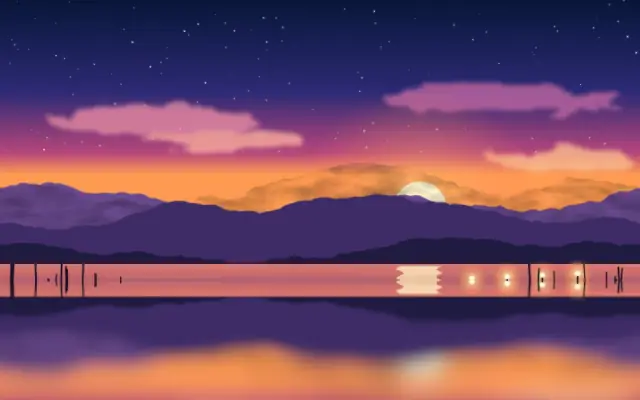
사진이 수많은 점으로 부서져 공중에 떠 있는 낮은 부조처럼 보입니다. 밝은 부분은 앞으로, 어두운 부분은 뒤로 물러나 이미지가 입체 지형으로 펼쳐집니다.

`count`는 기본 15000, 범위 1000–40000으로 점의 수와 세밀함을 정합니다. `depth`는 기본 0.7, 범위 0–2로 밝고 어두운 부분의 높낮이를 키우고, `depthSource`는 기본 "luminance"로 어느 채널에서 깊이를 읽을지 고릅니다. `particleSize`는 기본 0.75, 범위 0.3–3으로 점 크기를, `wobble`은 기본 0.35, 범위 0–1로 정지 화면에서도 이어지는 작은 흔들림을 조절합니다.

이미지나 영상 위에서 밝기 대비가 분명할수록 입체감이 읽힙니다. 커서로 점을 밀어내는 상호작용과도 어울리지만, `count`를 올릴수록 화면은 촘촘해지고 그리는 부담도 커지므로 장면에 필요한 수준에서 멈추세요.

언제 쓰나

히어로 비주얼·앨범 아트·실험적인 제품 배경을 입체 점 구름으로 보여줄 때 씁니다. 작은 글자나 촘촘한 데이터처럼 선명한 2D 형태가 중요한 화면에는 피하세요.

페이지로 열기 ↗