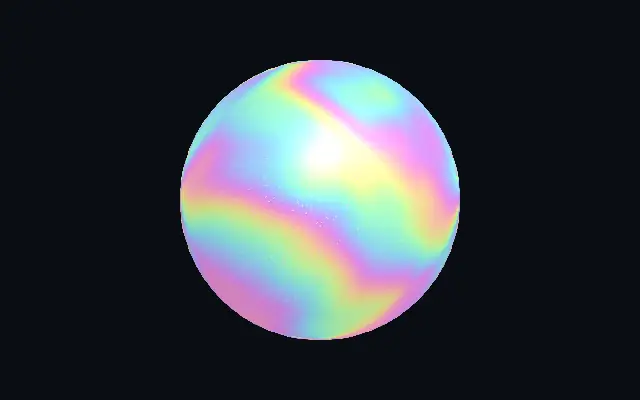
크리스털 렌즈

Crystal

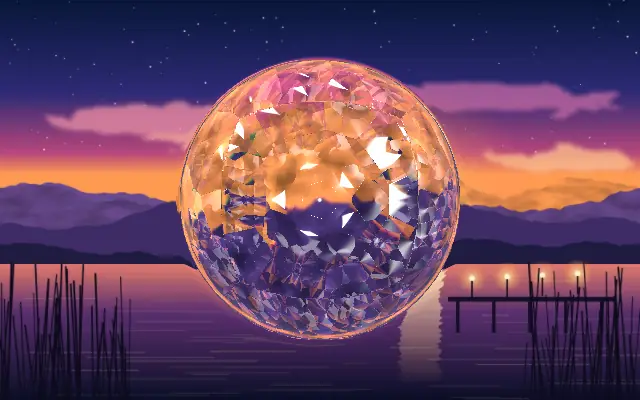
아래 콘텐츠를 면이 있는 보석 렌즈처럼 굴절하고 무지갯빛으로 분산합니다.

다른 이름: CrystalDiamond crystalCrystal lens

WebGPU 를 지원하는 브라우저에서 움직입니다

이 기기에서는 데모를 그리지 못해 정지 화면을 보여 줍니다

React
// WebGPU 를 지원하는 브라우저에서만 그립니다.
// /samples/… 는 이 사이트의 샘플 파일입니다. 내 프로젝트의 이미지·영상 경로로 바꾸세요.
import { Shader, Crystal, ImageTexture } from 'shaders/react'

export default function ShaderEffect() {
  return (
    <Shader style={{ width: '100%', height: 320 }} disableTelemetry>
      <ImageTexture
        objectFit="cover"
        url="/samples/photo.jpg" />
      <Crystal />
    </Shader>
  )
}
Vue
<!-- WebGPU 를 지원하는 브라우저에서만 그립니다. -->
<!-- /samples/… 는 이 사이트의 샘플 파일입니다. 내 프로젝트의 이미지·영상 경로로 바꾸세요. -->
<script setup lang="ts">
import { Shader, Crystal, ImageTexture } from 'shaders/vue'
</script>

<template>
  <Shader style="width: 100%; height: 320px" :disable-telemetry="true">
    <ImageTexture
      object-fit="cover"
      url="/samples/photo.jpg"/>
    <Crystal/>
  </Shader>
</template>
Svelte
<!-- WebGPU 를 지원하는 브라우저에서만 그립니다. -->
<!-- /samples/… 는 이 사이트의 샘플 파일입니다. 내 프로젝트의 이미지·영상 경로로 바꾸세요. -->
<script>
  import { Shader, Crystal, ImageTexture } from 'shaders/svelte'
</script>

<Shader style="width: 100%; height: 320px" disableTelemetry>
  <ImageTexture
    objectFit="cover"
    url="/samples/photo.jpg" />
  <Crystal />
</Shader>
Solid
// WebGPU 를 지원하는 브라우저에서만 그립니다.
// /samples/… 는 이 사이트의 샘플 파일입니다. 내 프로젝트의 이미지·영상 경로로 바꾸세요.
import { Shader, Crystal, ImageTexture } from 'shaders/solid'

export default function ShaderEffect() {
  return (
    <Shader style={{ width: '100%', height: '320px' }} disableTelemetry>
      <ImageTexture
        objectFit="cover"
        url="/samples/photo.jpg" />
      <Crystal />
    </Shader>
  )
}
JavaScript
// WebGPU 를 지원하는 브라우저에서만 그립니다.
// /samples/… 는 이 사이트의 샘플 파일입니다. 내 프로젝트의 이미지·영상 경로로 바꾸세요.
// <canvas id="canvas" style="width:100%;height:320px"></canvas> 가 페이지에 있어야 한다
import { createShader } from 'shaders/js'

const shader = await createShader(document.getElementById("canvas"), {
  components: [
    {
      type: 'ImageTexture',
      props: {
        objectFit: 'cover',
        url: '/samples/photo.jpg',
      },
    },
    {
      type: 'Crystal',
    }
  ]
}, { disableTelemetry: true })

속성(props) · Crystal

값을 바꾸면 위 데모와 코드 탭에 바로 반영됩니다. 설명은 라이브러리 레지스트리의 영어 원문(MIT)입니다.

이름값기본값범위·선택지설명(원문)
originOrigin코드에서 지정center—Reference edge the center position is measured from (center default). Lets you pin the shape relative to a corner or the canvas centre.
centerCenter
x0.5y0.5
{"x":0.5,"y":0.5}x, y: 0 – 1Center position of the crystal shape
scaleScale10.1 – 3 (step 0.01)Scale of the crystal shape (1 = default size)
rotationRotation00 – 360 (step 1)Rotation of the crystal shape in degrees
cutoutCutoutfalse—Cut out alpha outside the crystal shape
refractionRefraction0.50 – 3 (step 0.01)How strongly the crystal refracts content beneath
dispersionDispersion0.50 – 2 (step 0.01)Prismatic rainbow dispersion — splits light into spectral colors
facetsFacets53 – 24 (step 1)Symmetry order — how many times the facet pattern repeats around the center
fresnelFresnel0.050 – 1 (step 0.01)Fresnel rim glow intensity around the crystal boundary
fresnelSoftnessFresnel Softness10 – 2 (step 0.01)Fresnel rim width — higher values spread the glow further inward
fresnelColorFresnel Color#ffffff—Color of the fresnel rim glow
edgeSoftnessEdge Softness00 – 1 (step 0.01)Softness of the crystal boundary edge
innerZoomInner Zoom1.50.5 – 3 (step 0.01)Magnification of content seen through the crystal
lightAngleLight Angle2700 – 360 (step 1)Light direction angle in degrees
highlightsHighlights0.50 – 2 (step 0.01)Additive brightness on light-facing facets — never darkens
shadowsShadows0.30 – 1 (step 0.01)Darkening on shadow-facing facets — never brightens
brightnessBrightness1.20.5 – 3 (step 0.01)Overall crystal brightness — higher values push facets toward brilliant white
tintColorTint Color#e8e0ff—Crystal body tint color
tintIntensityTint Intensity00 – 1 (step 0.01)How much tint color is applied to the crystal interior
tintPreserveLuminosityPreserve Luminositytrue—Preserve original brightness when tinting
shapeShape코드에서 지정{"type":"sphere3D","radius":0.35}—Serialized shape configuration (JSON)
shapeSdfUrlshapeSdfUrl코드에서 지정—URL to a pre-generated SDF .bin file
shapeTypeshapeType코드에서 지정—Active SDF shape type

모든 컴포넌트 공통: blendMode · opacity · visible · maskSource/maskType · boundingBox · id

잘라낸 보석을 통해 풍경을 보는 듯, 아래 이미지가 각진 면을 따라 꺾이고 빛이 여러 색으로 갈라집니다.

`refraction`을 올리면 아래 콘텐츠의 굴절이 강해지고, `dispersion`은 무지갯빛 분리를 키웁니다. `facets`는 중심을 둘러싼 면 무늬의 반복 수를, `brightness`는 면의 전반적인 밝기를 조절합니다. `tintIntensity`를 올리면 내부 색조가 더해집니다.

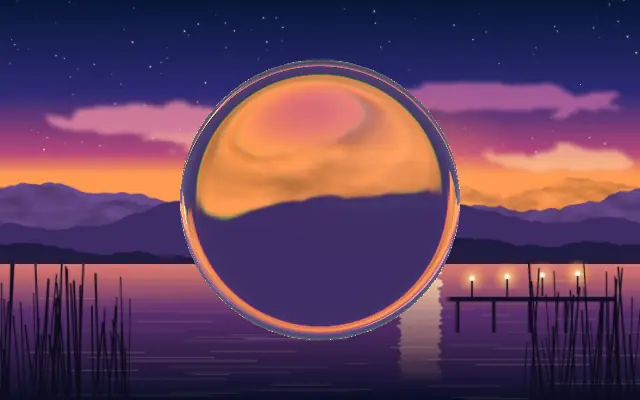
굴절될 이미지나 도형을 먼저 놓아야 렌즈 효과가 보입니다. 아래 배경에 선명한 형태가 있으면 굴절을 알아보기 쉽고, 작은 글자나 복잡한 화면 위에서는 내용이 읽히지 않을 수 있습니다.

언제 쓰나

보석 렌즈, 프리미엄 카드의 포인트, 짧은 빛 전환에 어울립니다. 작은 본문이나 선명한 원본을 그대로 유지해야 하는 이미지에는 피하세요.

페이지로 열기 ↗